Now in early access for macOS
Make every screenshot beautiful.
CaptureBear wraps every capture in a gorgeous background with perfect corners and realistic shadows — a share-ready image with one shortcut, zero design skills.
Press ⌘ ⇧ 1 anywhere to capture
01
Capture
Press ⌘⇧1 to grab a region, or tap Space for a whole window. The editor opens instantly.
02
Style
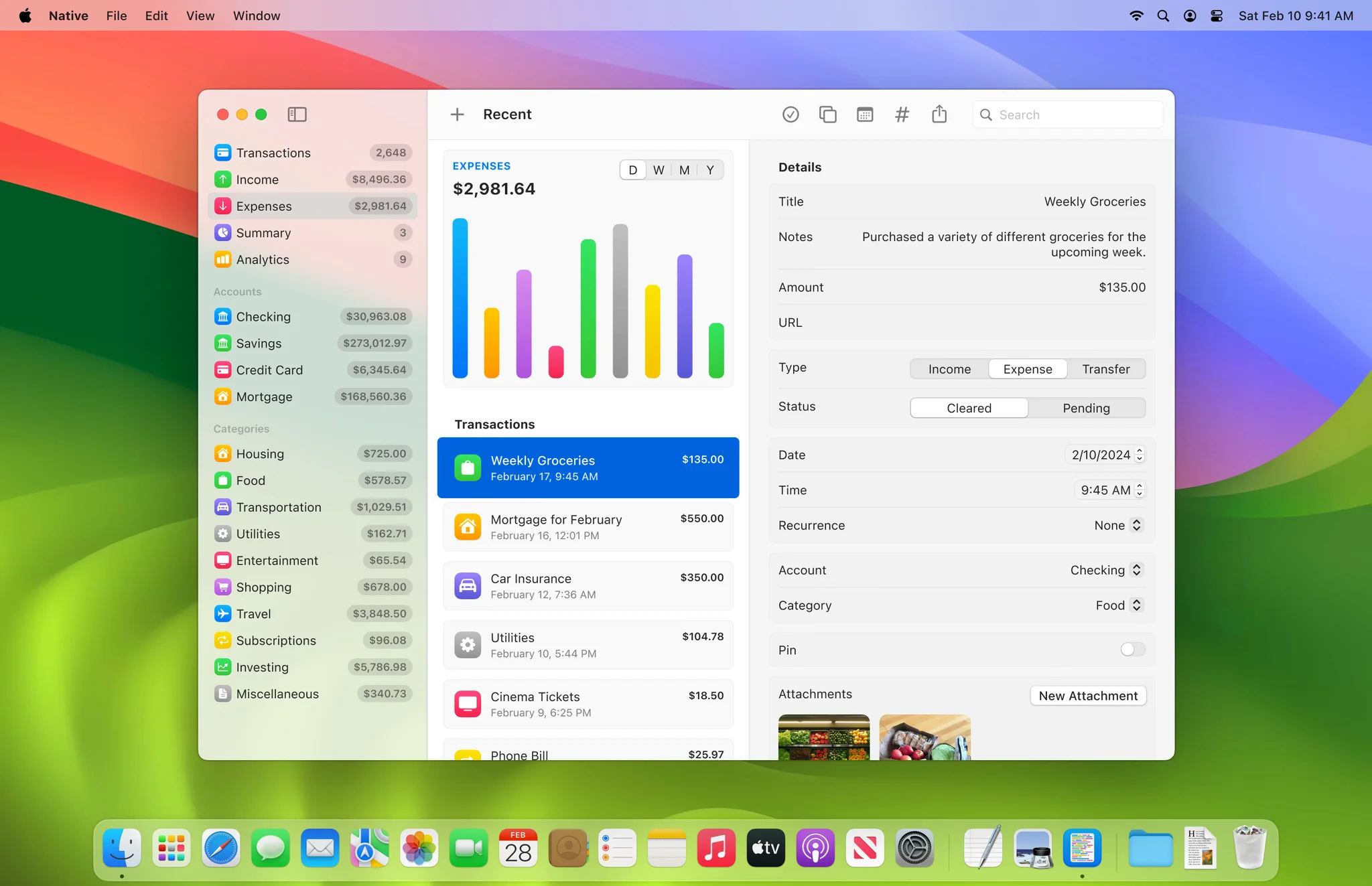
Your shot lands on a beautiful background with corners and shadow already dialed in.
03
Share
⌘C copies the finished image. ⌘S saves it to your Desktop. No dialogs, no waiting.
Backgrounds, corners, shadow
Beautiful by default.
No blank canvas, no decisions. Every capture arrives already styled — and everything is one slider away if you want to tweak it.
- Backgrounds that match the moment
- Rich gradient presets, any solid color, or your current desktop wallpaper — picked up automatically.
- Corners like the ones Apple ships
- Window captures get native-feeling rounding out of the box, from subtle to full pill.
- Shadows with actual physics
- A hybrid camera-and-light model casts soft, believable depth — not a gray smudge.
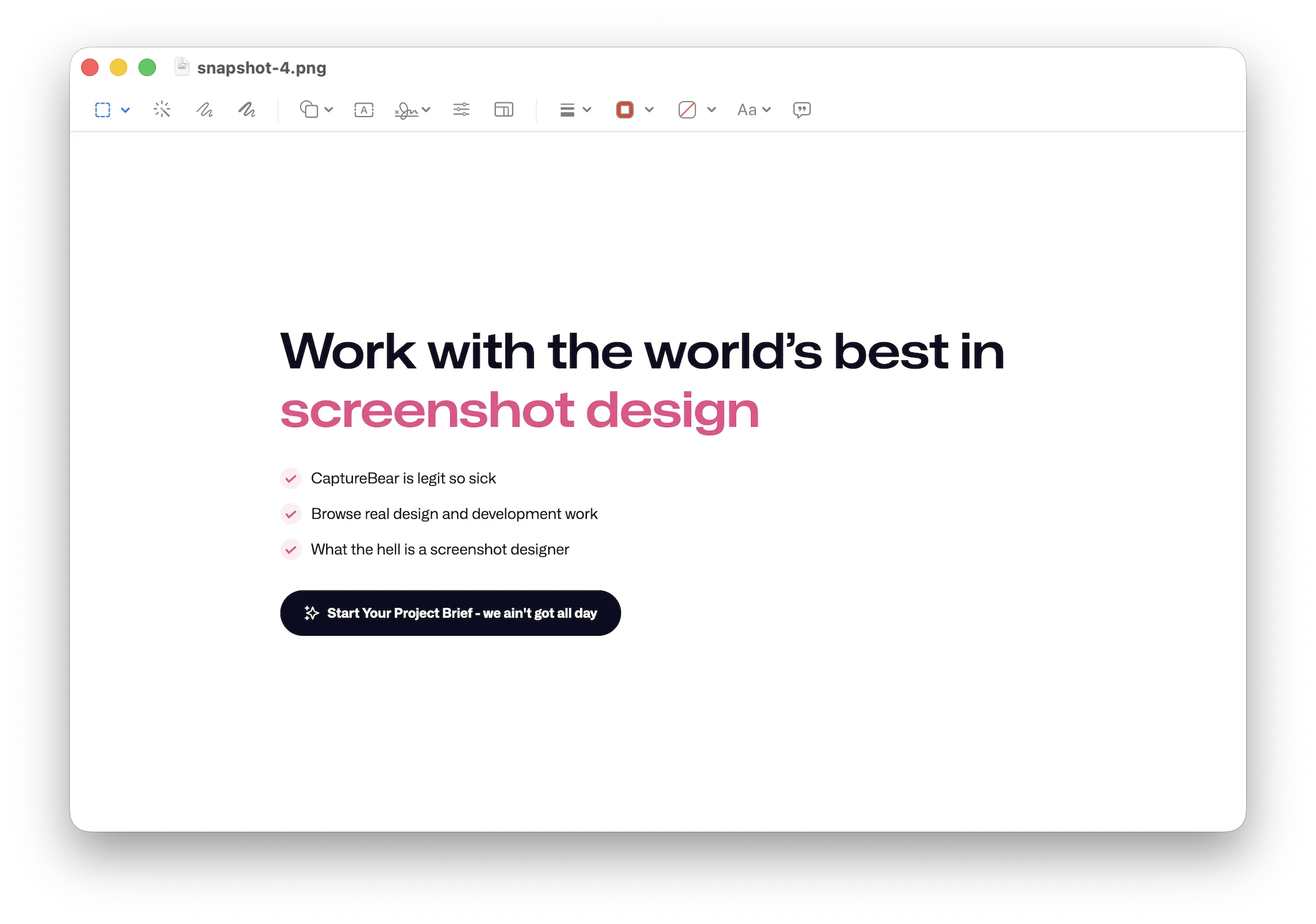
Hover to return to 2D
Perspective
Add a little drama.
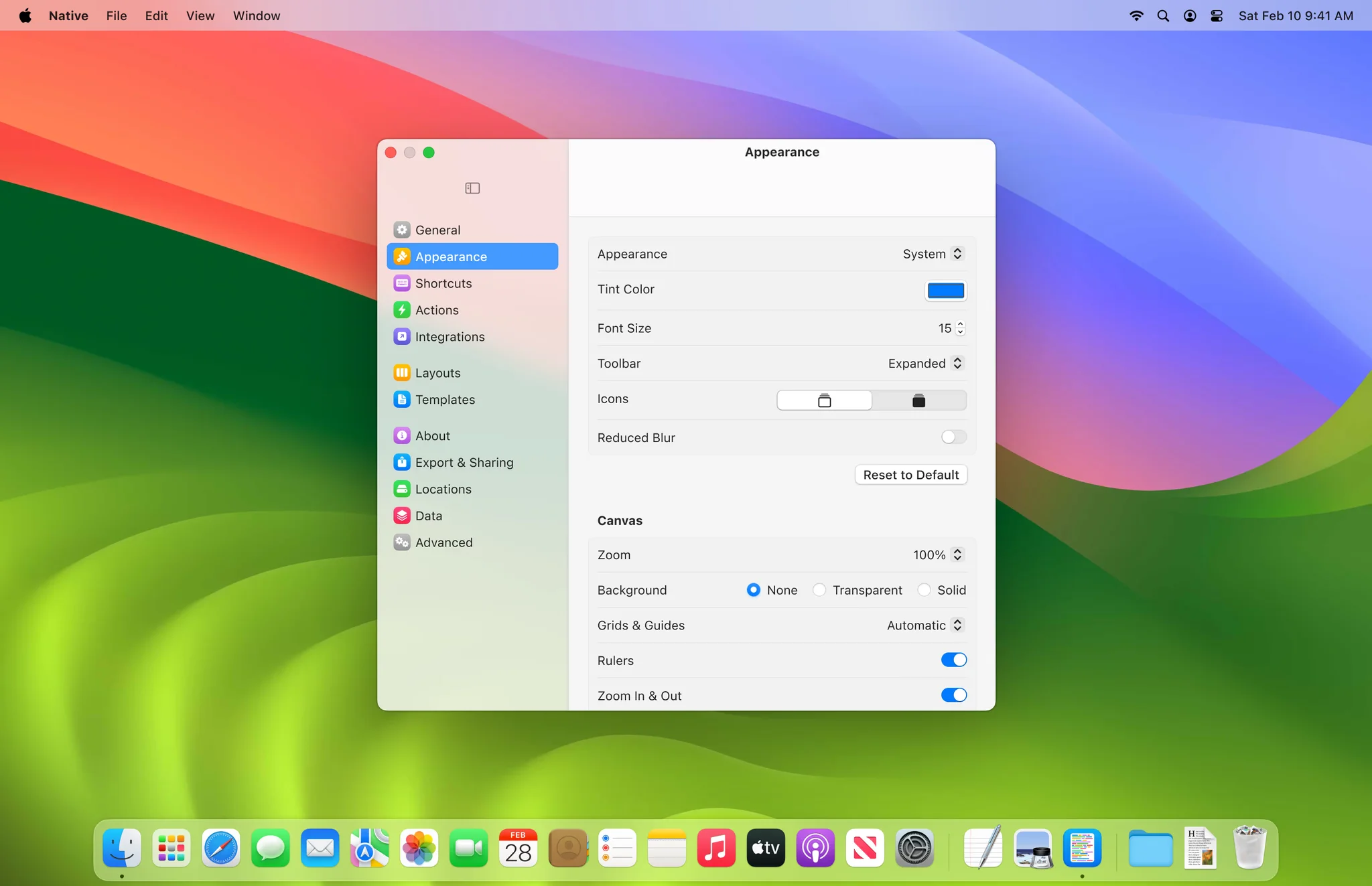
Hold ⌘ and drag to tilt your shot in 3D. CaptureBear projects a true shadow onto the backdrop behind it — computed through the camera, not painted on — so the depth reads as real from any angle.
- Rotation that feels physical
- Smooth, eased motion rendered live by the Metal engine — no stutter, even on huge captures.
- One tap back to flat
- A perfectly straight-on pose is always one click away, and small tilts snap back to true 2D.
Annotate and redact
Make your point.
Arrows, shapes, text, and redaction live on keys 1 through 4. Annotations stay editable until you export — nothing is baked in until you say so.
- Tools that keep up with you
- Drag to draw, drop outside the card if you like — annotations can point in from anywhere in the frame.
- Redaction with a radar
- CaptureBear detects emails, credit cards, IP addresses, and API keys, then blacks them out in one click.
- Copy the words out of any shot
- Built-in analysis reads the text in your screenshot verbatim, ready to copy component by component.
2 emails detected Redact all
Public link, on your domain
cdn.yourdomain.com/shot-2026-07-09.png
Copied
Uploads
- release-notes-hero.png 2m ago Copy link
- onboarding-flow.png 1h ago Copy link
Export and share
Off your Mac in milliseconds.
⌘C puts the finished image on your clipboard. ⌘S drops it on your Desktop. No export dialogs, no five-step wizards — the fast path is the default path.
- Bring your own storage
- Point CaptureBear at your own S3 or R2 bucket and every export can return a public link on your domain — no third-party host in the middle.
- Links that are just images
- No landing page, no comments, no branding wrapped around your work. The link is the PNG — paste it anywhere and the recipient sees the picture.
Beyond screenshots
A drop zone for everything.
The bear in your menu bar takes any file — a video, a zip, a font, a PDF. Drop it, and a public link on your domain lands on your clipboard about a second later.
- Any file, one motion
- Drag it onto the menu bar icon. CaptureBear uploads it straight to your own S3 or R2 bucket and copies the link — no window, no dialog, no detour.
- A tidy history
- Every upload in one list: copy a link again anytime, or delete the file from your bucket with one click.
- Clipboard, your way
- Prefer links over pixels? Set ⌘C to put the public URL of the styled shot on your clipboard instead of the image itself.
Drop on the menu bar
 launch-demo.mov
Uploads
- launch-demo.mov Link copied
- design-tokens.zip 4m ago Copy link
- q3-report.pdf 1d ago Copy link
Your bucket, your domain, your files. With your own storage connected, uploads go straight from your Mac to your bucket — they never pass through us. Prefer zero setup? CaptureBear Cloud hosts them instead.
And there's more.
Small things, done carefully — the kind you notice after a week and can't live without.
- Window-perfect captures
- Grab a region, a window, or the full screen. Window captures get native corner rounding automatically.
- Sizes for every platform
- Auto-fit, square, 16:9, or ready-made presets for X, LinkedIn, Instagram, and more.
- Your look, saved
- Store background, corner, and shadow combinations as presets and reuse them everywhere.
- A very useful menu bar icon
- Reopen your last screenshot, start a capture, or drop a file on it to upload — all without a Dock icon in sight.
- WYSIWYG, powered by Metal
- The live preview is the export — same renderer, pixel for pixel, at any zoom level.
- Local-first privacy
- Everything happens on your Mac. Nothing leaves it unless you turn uploads on.
A gift for developers
Copy JSON. Paste it pretty.
Copy JSON anywhere — a browser, a log, a database tool — and CaptureBear reformats it on your clipboard before you can even paste. No extension, no web formatter tab, no step two.
- Faithful to the byte
- Only whitespace changes. Key order, number precision, and escapes come through exactly as copied.
- Knows when to stay out of the way
- Plain text, code, and password-manager copies are never touched. Toggle it off from the menu bar anytime.
- Never leaves your Mac
- Formatting happens entirely on-device. Your clipboard — JSON or anything else — is never sent over the network. A strictly local utility.
{"id":"61582bcb","email":"bethany@example.com","role":"owner","created_at":"2026-07-17 15:10:00+00","invited_by":null}
{
  "id": "61582bcb",
  "email": "bethany@example.com",
  "role": "owner",
  "created_at": "2026-07-17 15:10:00+00",
  "invited_by": null
}
Feels like it shipped with your Mac.
Built for Apple Silicon: native SwiftUI with a Metal rendering engine underneath. No Electron, no splash screen — CaptureBear lives in your menu bar and gets out of the way.
- App binary
- 3.7 MB
- Rendering
- Metal
- Electron
- 0%
People notice.
The compliment is never "nice screenshot tool." It's "wait, how did you make that?"
My changelog screenshots used to be an afterthought. Now they're the best-looking part of the post.

Alex Moreau
Indie developer
I stopped opening Figma just to put a gradient behind a screenshot. It's ⌘⇧1 and I'm done.

Jordan Blake
Product designer
The 3D tilt feels like a party trick until every screenshot in your docs looks like a product shot.

Riley Chen
Developer advocate
Free for most people.
The app is free — every capture and styling feature, forever. Pay only if you'd rather never think about where your screenshots are hosted.
CaptureBear
Bring your own bucket$0 forever
The whole app, free. Sharing links too — just point it at your own S3 or R2 bucket.
- Every capture, styling, 3D, and annotation feature
- Share links from your own S3 / R2 bucket, on your domain
- Redaction and sensitive-data detection
- Automatic updates, no account required
CaptureBear Cloud
Zero setup$9.99 /month
Never think about hosting or URLs. ⌘C uploads to our cloud and the link is on your clipboard.
- Everything in the free app
- Instant share links — no bucket, no config, no DNS
- 100 GB of storage for screenshots and files
- AI component analysis for one-click redaction
- Billed through Stripe — cancel anytime, in one click
Questions, answered.
Something else on your mind? Email support@capturebear.com and a human will reply.
Which Macs does CaptureBear support?
CaptureBear is built natively for Apple Silicon (M1 and later) on macOS 14 Sonoma or newer — a 3.7 MB binary that feels instant on everything from a MacBook Air to a Mac Studio.
How is CaptureBear different from the built-in Mac screenshot?
The built-in Mac screen capture (⌘⇧3, ⌘⇧4, ⌘⇧5) drops a bare PNG on your Desktop. CaptureBear picks up where that leaves off: press ⌘⇧1 and your screenshot opens in an editor already styled with a background, rounded corners, and a realistic shadow — ready to annotate, redact, and share. New to the shortcuts? Here's how to take a screenshot on Mac.
Is CaptureBear a snipping tool for Mac?
You can use it as one. CaptureBear grabs any region, window, or the full screen like a snipping tool — then goes further, styling the shot and letting you annotate, redact, and share it without ever leaving the keyboard.
Does it work offline?
Completely. Capturing, styling, annotating, and exporting all happen locally on your Mac. The only features that touch the network are the ones you opt into, like uploads.
Where do shared links point?
Wherever you want. Free: connect any S3-compatible storage — Cloudflare R2, Amazon S3 — and CaptureBear uploads exports there, returning a public link on your own domain. Or subscribe to CaptureBear Cloud and skip the setup entirely: we host the files and hand you the link.
Can it redact sensitive information?
Yes. Black out anything with the redact tool, or let CaptureBear find emails, credit card numbers, IP addresses, and API keys and redact them in one click.
Can it upload files that aren't screenshots?
Yes. Drop any file onto the menu bar icon — a video, a zip, a PDF — and CaptureBear uploads it to your bucket and puts the public link on your clipboard.
Is it a subscription?
The app is free — no purchase, no trial clock, no watermark. CaptureBear Cloud is an optional $9.99/month subscription for hosted share links, 100 GB of storage, and AI analysis. It's billed through Stripe and you can cancel in one click; bring-your-own-bucket uploads stay free forever.
Will it fight with the built-in macOS shortcuts?
No. CaptureBear listens on ⌘⇧1 by default, and you can change that in Settings. macOS's own ⌘⇧3, ⌘⇧4, and ⌘⇧5 keep working exactly as before.
Your screenshots deserve better.
Download CaptureBear and make the next one beautiful.
macOS 14+ · Built for Apple Silicon · Free — under 4 MB